
Quick, private, and free — save public Threads photos in the highest quality the post provides.
With Thredra, saving photos is a simple flow: Paste → Preview → Save. Thredra lists the image variants exposed by the post (original or downscaled sizes; formats like JPG/PNG/WebP) so you can keep the sharpest version. It works entirely in your browser on iPhone, Android, and desktop — no app or signup.
Resolution mirrors the source. If a post doesn’t expose an “original” or larger size, Thredra won’t fabricate one. Private or restricted posts aren’t supported.
Download in 4 Steps

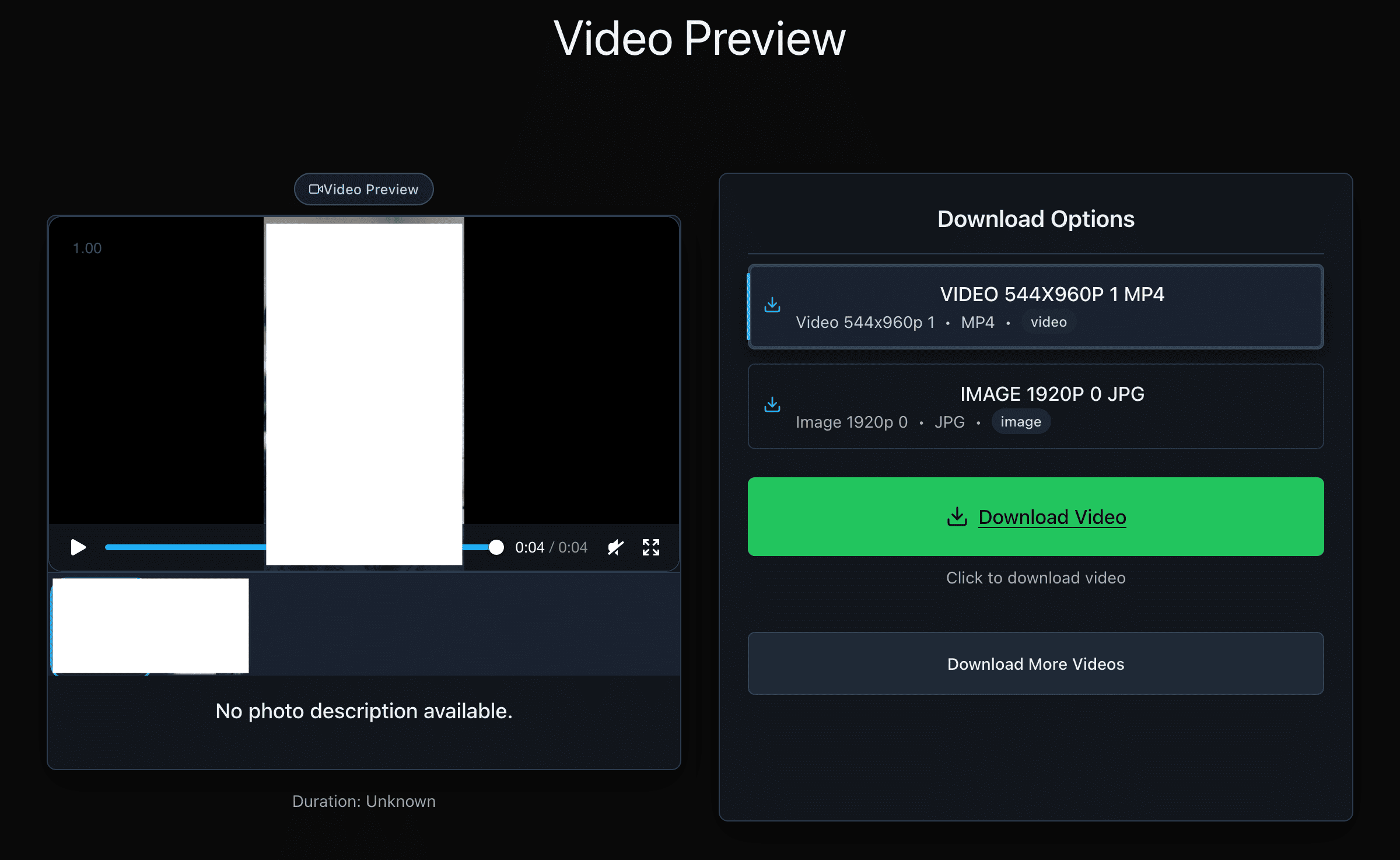
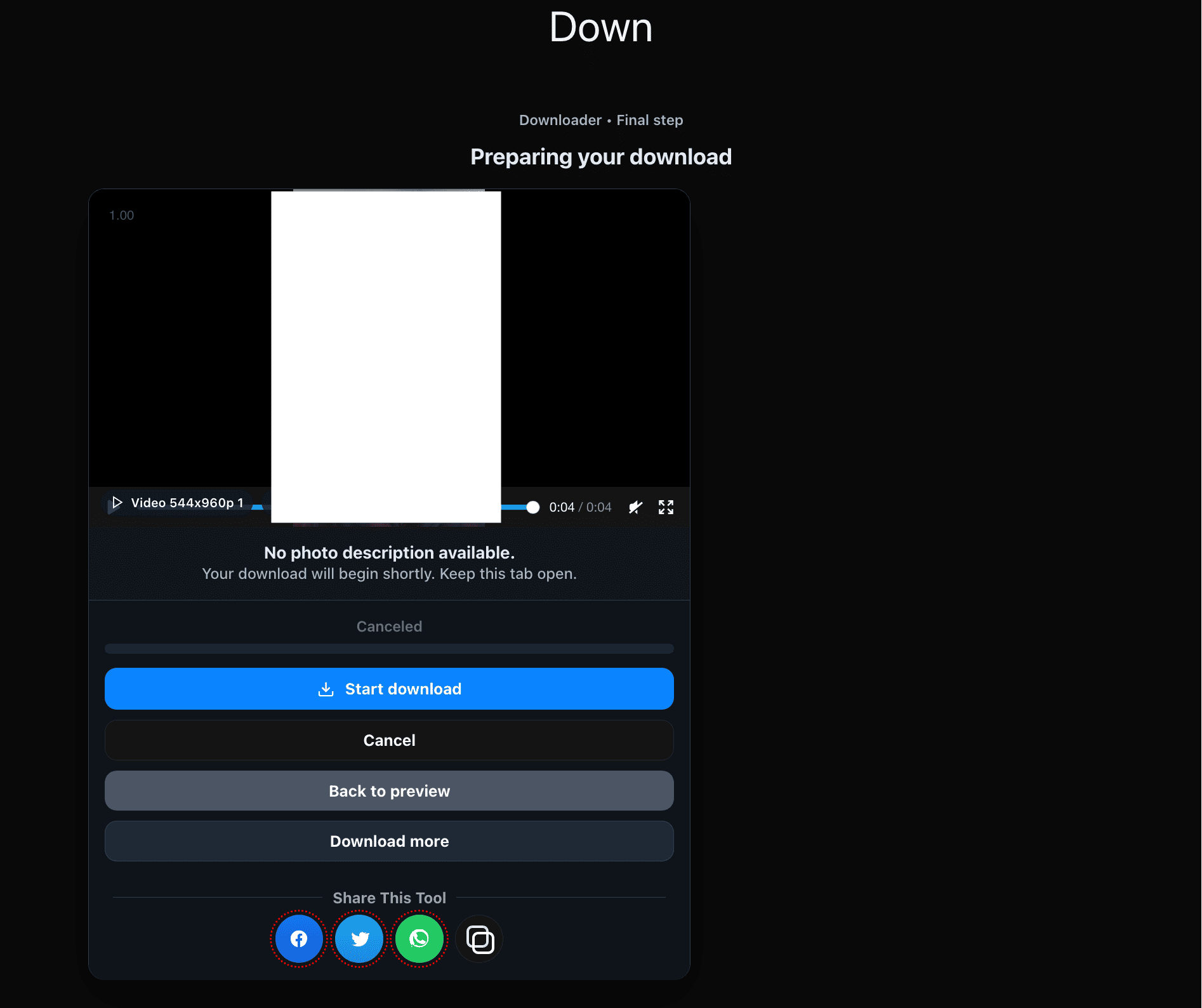
Copy the Correct Link
Web (threads.net)
- Open the photo post on threads.net.
- Switch to single-post view.
- Copy the full URL from your browser.
iPhone / iPad
- Open the photo post.
- Tap Share → Copy link.
- Paste the link into Thredra.
Android
- Open the photo post.
- Tap Share (or ⋯) → Copy link.
- Paste the link into Thredra.
Resolution, Format & File Size Basics
Typical variants
- Original / Large: Best for printing or close-crop edits.
- Standard: Lighter file size for sharing.
- Square/Portrait/Landscape: Aspect ratio follows the post.
What to expect
- No upscaling: Thredra mirrors the variants Threads serves.
- Format: Usually JPG or WebP; PNG appears when provided.
- Metadata: Threads may strip EXIF; Thredra passes through whatever is present.
Saving the Photo on Your Device
iOS (Safari)
- Tap Download or open the image preview.
- Long-press the image → Save Image (or Share → Save to Files).
- Find it in Photos or Files.
Android (Chrome)
- Tap Download or open the image preview.
- Long-press → Download image.
- Find it in Downloads or Gallery.
Windows / macOS
- If the browser shows a preview, right-click → Save image as…
- Choose a folder and save.
- If an app can’t open WebP/HEIC, convert using Preview (macOS) or Photos (Windows).
Why Choose Thredra
- Purpose-built for photos: Fast, clean, image-first flow.
- Carousel support: Pick and save images individually from multi-photo posts.
- No added watermark: Files are saved exactly as served.
- Privacy-friendly: On-demand processing; no accounts or extensions.
Troubleshooting
- Invalid/partial URL: Re-copy via Share → Copy link or from the post’s page.
- No “Original” listed: The uploader didn’t expose a larger variant, or Threads is still processing.
- Browser opens a preview: Long-press (mobile) or right-click (desktop) to save.
- Blocked download: Try another browser or temporarily disable strict blockers.
- Can’t open the file: Convert WebP/HEIC using built-in tools on Windows/macOS.
- Low storage: Free space and retry.
- Private/restricted: Not supported.
Respect Rights & Platform Rules
Thredra helps you save publicly accessible photos from Threads for personal use. Always respect creator permissions and Threads’ Terms. Don’t redistribute or republish without consent. Your usage is your responsibility.
Photo Downloading FAQ
Is Thredra free?
Yes — free, browser-based, and no signup.
What formats can I download?
Whatever the post exposes — commonly JPG or WebP; PNG when available.
Does quality match the original?
Yes — Thredra mirrors the image variants that Threads serves; no artificial upscaling.
Can I download multiple images from a carousel?
Yes — select and save each image individually from the same post.
Do you store my media or links?
No — processing is on-demand; we don’t keep your files or URLs.
Is there a watermark?
No. Photos are saved exactly as served by Threads; Thredra does not add watermarks.
Will EXIF metadata be preserved?
Threads often strips EXIF before delivery. Thredra passes along whatever metadata the served file contains.
Does it work on mobile?
Yes — iOS and Android via your regular browser.
The image won’t open on my PC/Mac
Convert WebP/HEIC using Preview (macOS) or Photos (Windows), or use a modern image viewer.
Can I download private photos?
No — private or restricted content isn’t supported.
Download a Threads Photo
Open Thredra, paste a link, choose the largest size/format, and save the image to your device.